- Manage your ad account directly from an AI chat
- Perform bulk actions with a single command
- Connect in self-serve mode
Run your ad account through your favorite AI assistant
Connect Claude, ChatGPT, Cursor, or any other MCP-compatible assistant to manage campaigns faster — by text or voice

AI assistant capabilities in Kadam
Automation of routine tasks, analytics, and ad account management for advertisers and publishers

Campaigns, groups, and creatives
Create campaigns at any scale, from a single launch to bulk campaign setup. Edit, scale, and manage campaign groups without handling each one manually.

Bid management
and optimization
Adjust bids, targeting, and limits across campaigns, placements, and creatives without manual selection.

Statistics and analytics
Use AI as your BI assistant: analyze data, compare periods, and detect performance drops across campaigns.

Billing and postbacks
View transaction history, postback logs, and event errors directly in the AI chat.

Support and knowledge base
Get quick answers about your account, settings, and the Kadam knowledge base without waiting for support.


What used to take hours now takes seconds
The AI assistant helps you structure large datasets and apply bulk changes with simple commands
Creation
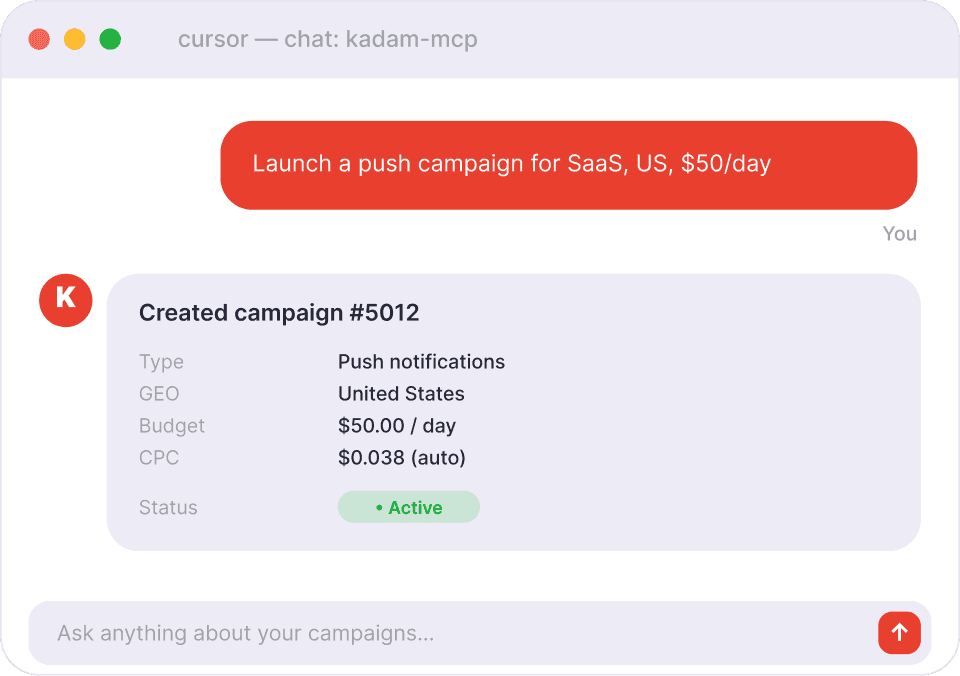
Launch campaigns with a single message: describe the task, and the agent will handle the setup. Drag creatives into the chat, and they will be added to the right campaign without switching tabs.
Bulk changes
Need to update the landing page URL across 50 campaigns? Send one message in the chat, and the change will apply everywhere. The same works for any other bulk edits.
Optimization
No need to dig through dashboards to find what dropped and where. Kadam shows where CTR is down and what is underperforming. You decide what to do next, and the agent applies the changes.
Installation guide
Choose your AI client and follow the steps. It takes under 2 minutes.
Click “Install in Cursor”
This opens Cursor and pre-fills the MCP server configuration for you.
Enter your API keys
Cursor will show the server config. Replace the placeholder values with your real API keys:
KADAM_ADV_API_KEY— Advertiser key (campaigns, creatives, stats)KADAM_PUB_API_KEY— Publisher key (sites, ad blocks, revenue)
Save and start chatting
Click “Save” in Cursor. After that Kadam will appear in your MCP tools list. Open a chat and start managing your ads through AI.
"List my active campaigns"Where to get your API keys
You need at least one key. Both are free and take 30 seconds to create.
- ADVpartners.kadam.net → Profile → API
Advertiser API Key
For managing campaigns, analytics, and settings.
- PUBpub.kadam.net → Profile → API
Publisher API Key
For managing sites, ad blocks, and monetization.
Control and security built into every AI action

Controlled API access
AI access is limited by an API key and assigned permissions, so you never need to share your login or password.

Transparent change history
Every agent action is logged: what was changed, when it happened, and which request triggered it.


Kadam doesn't store
your requests
The AI assistant works directly through the API, so Kadam does not store the history of your requests or commands.
